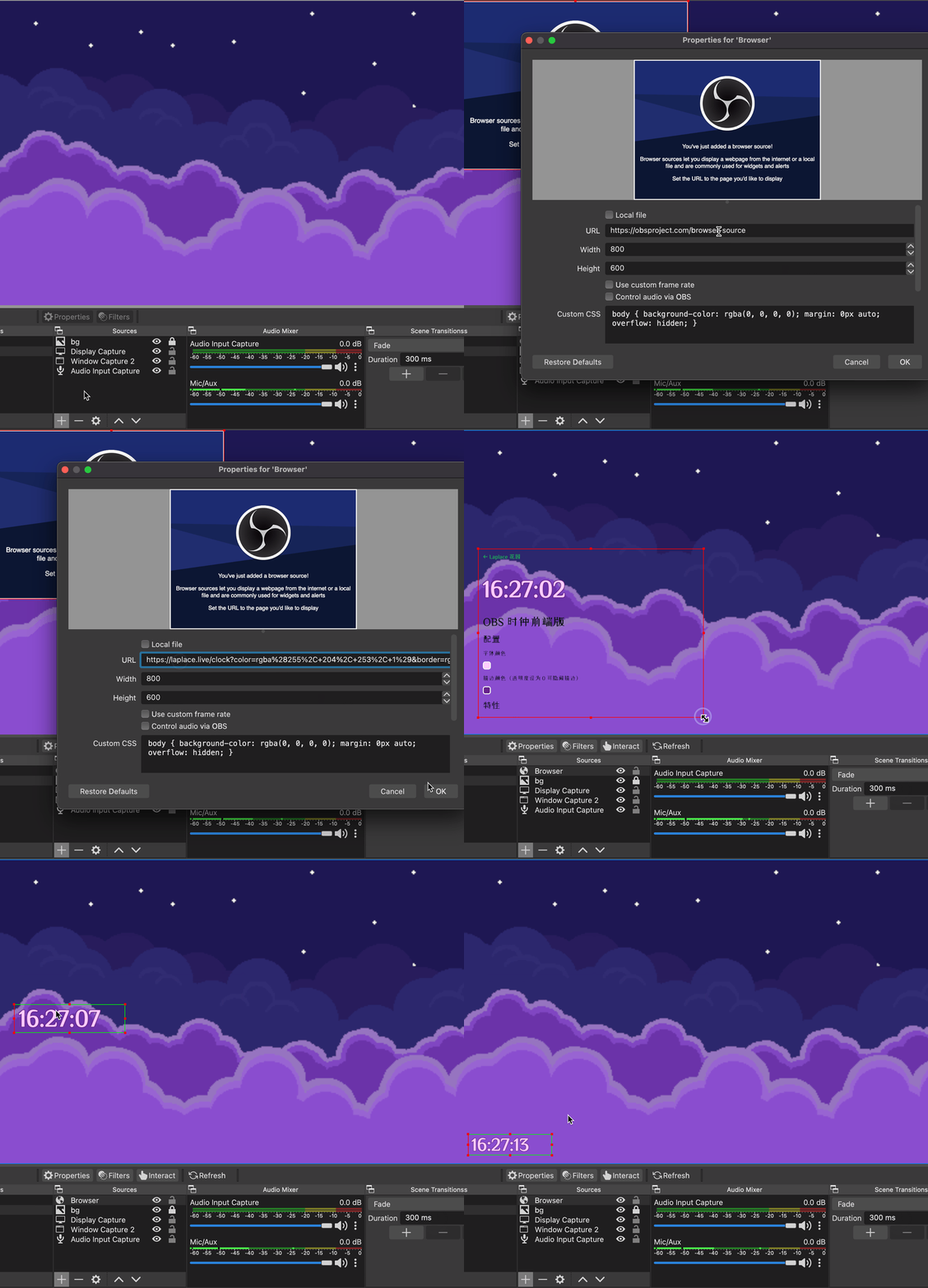
LAPLACE Clock needs no OBS plugin and nothing to download. Every setting lives in the URL, so all it takes in OBS is a new browser source with that address pasted in
Usage
- Switch to the Settings tab, use the color picker and configuration buttons to adjust the desired style
- Once it looks right, copy the entire URL from the browser address bar
- Open OBS, create a new Browser source, and paste the URL. Leave the other settings unchanged and click OK to save
- In the preview, select this layer, then hold alt or option while left-clicking to drag the handles and hide the irrelevant elements
Why Cropping Is Needed
The browser source loads the full configurator page: the clock is pinned to the top, with the tabs and all the settings below it. Cropping keeps only the clock area at the top and pushes the configurator out of frame
The page sets no background color of its own, so everything around the clock is transparent in OBS and composites straight over whatever is behind it. The "Background Color" control in the configurator is a browser-only preview and never travels with the URL into OBS
Notes
With sans-serif fonts, leave some room on the right when cropping in OBS —
1:11:01 is not as wide as 23:58:58, so crop for the widest case
- A semi-transparent text gradient only works if the text stroke is set to transparent as well
- The address in OBS does not update itself after you change a style — copy the new URL and replace the one in the browser source
- By default the clock reads the system time of the machine running OBS. If that system time is off, see Network Time Sync
Related Links
- Settings - What every option means and the values it accepts
- Fonts - Picking a Google Font or one installed locally
- URL Parameters - Editing the parameters in the address directly
OBS and OBS Studio are created and maintained by Lain. Development by OBS Studio Contributors.
Last updated on September 10, 2026